

Rule Solver allows creators of business decision models to define unknown decision variables, define and post constraints to express their relationships, and rely on predefined search strategies to find with the proper decisions. To do this, Rule Solver introduces new types of decision table columns allowing a user to mix and match business rules with technical constraints within the same decision tables. Rule Solver provides several predefined templates for definition and resolution of constraint satisfaction and optimization problems:
- Defining Constrained Variables
- Defining Constraints
- Posting Constraints
- Constraints with Probabilities
- Defining Optimization Objective
- Search Methods
PROBLEM DEFINITION and PROBLEM RESOLUTION
Decision models that utilize Rule Solver usually use as the main “model.goal=DefineAndSolve” in their Environment table. This goal is predefined as follows:

Thus, your custom decision model only needs to define two sub-decisions:
- “Define” for Problem Definition and
- “Solve” for Problem Resolution.
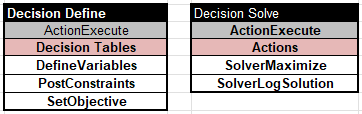
For instance, the sample “Simple Arithmetic Problem” defines these two tables:
DEFINING CONSTRAINED VARIABLES
The table “Define” usually executes two problem-specific tables “DefineVariables” and “PostConstraints” similar to these ones:
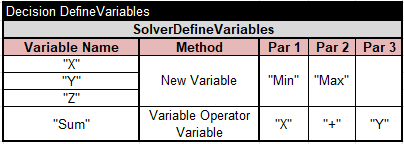

You may create constrained variables, expressions, or they arrays using the predefined column “SolverDefineVariables“.
To inform Rule Solver that the above variable “Z” will be used as an optimization objective, we may use the following table with the predefined column “SolverSetObjective“:

Here are typical examples of defining constrained variables that demonstrate the use of different definition methods:

The first column defines the name of a new constrained variable, expression, or array. The second column defines the creation method that may use 1, 2, or 3 parameters defined in the columns Par 1, Par 2, and Par 3.
We recommend to take all cells (even method names) in quotes. Operators like “+” or “=” always must be taken in quotes. The exception is the use of OpenRules FEEL formulas like:

that concatenates the value of “First Guest Seat” and the word “Seat” after a space. Such formulas should not be taken in quotes. However, if your formula uses a stand-alone decision variable name from a Glossary you may put it in quotes as well, e.g. “Last Seat”.
You may use multiple tables with columns “SolverDefineVariables” with different numbers of parameters and giving columns your own titles as in the table below (from the sample decision model “Zebra“):

You may find the complete list of all methods for defining new constrained variables, expressions, or their arrays here.
DEFINING CONSTRAINTS
You may create your own custom constraints using the predefined column “SolverDefineConstraints“. The above table “Define” after executing “DefineVariables” also executes “PostConstraints”:
If you need to post different constraints under different conditions, you may first call the table “DefineConstraints” and then “PostConstraints”, e.g. see how it is done in the sample “Ricky Stocks“:
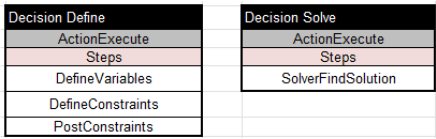
where the tables “DefineConstraints” and “PostConstraints” look as follows:
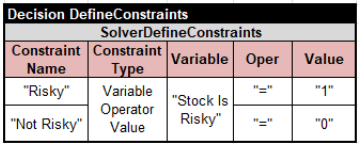

Here are typical examples of defining custom constraints that demonstrate the use of different constraint types:

For instance, the decision model “Miss Manners” defines incompatibility constraints for Guest 1 and Guest 2 using the following table:

These constraint will be posted later using the constraint type “IfThen” described in the first columns in plain English:

POSTING CONSTRAINTS
Note that by defining constraints you do not make them active yet. To take an effect the constraints need to be posted. You may post constraints using the predefined column “SolverPostConstraints“. Here are typical examples of posting constraints that demonstrate the use of different posting methods:

You may find the complete list of constraint posting methods here.
DEFINING OPTIMIZATION OBJECTIVE
If your problem is an optimization problem and needs to define an optimization objective as an expression using other decision variables. For example, in the decision model “Zoo” the optimization objective is “Total Cost” defined as a scalar product of solver variables “Bus Variables” and integer constants “Bus Costs”. To inform Rule Solver that this variable will be used as an optimization objective, we use the following table with the predefined column “SolverSetObjective“:

PREDEFINED SEARCH METHODS
With Rule Solver you mainly concentrate on the problem definition defining decision variable and posting constraints on them. The problem resolution relies on the predefined decision tables with search methods and/or column templates. The most popular predefined search methods are:
- SolverFindSolution – finds a feasible solution
- SolverMinimize – finds a solution that minimizes an already-defined objective
- SolverMaximize – finds a solution that maximizes an already-defined objective
The column “SolverOptimize” defines an objective and call the proper method to minimize or maximize it:

These methods automatically save the found solutions by assigning the found values of Solver’s variables to the business variables with the same name.
The method “SolverLogSolution” prints the found solution.
The method “SolverFindAllSolutions” can find ALL solutions and then you can print them using the method “SolverLogSolutions“. If there are too many solutions, you may limit the maximal number of considered solutions using the following table:
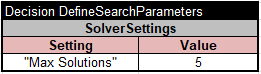
Actually you may define other Solver’s setting in these table, for instance:
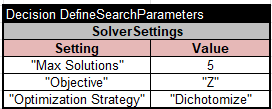
Optimization Strategy can have two values:
- Basic (default) that after finding one solution is trying to find a next one with a smaller objective.
- Dichotomize that after finding one solution is trying to find a next one by dividing the remaining domain of the objective variable into two parts.
You may use the predefine column “SolverAssignSolution” to explicitly assign found values of Solver’s decision variables to business decision variables like in the sample decision model “Invest“:

Here is a more complex example from the sample “Oven“:

You may use a special condition “SolverSolutionCondition” to analyze the found solution and assign problem-specific results like in this table from the sample “StableMarriageExcel“

There are several more useful predefined columns.
Analyze the provided example in the folder “openrules.solver” to see more complex use of problem definitions and problem resolutions.

 Decision Intelligence Platform