


Let’s see how Rule Learner can help to build a decision model capable of recommending contact lenses based on different characteristics of the patient. This example is available in the folder “openrules.learner/Lenses” which you receive with the standard OpenRules installation:

The folder “Learning” contains file “Samples.csv” with samples of input and expected output:
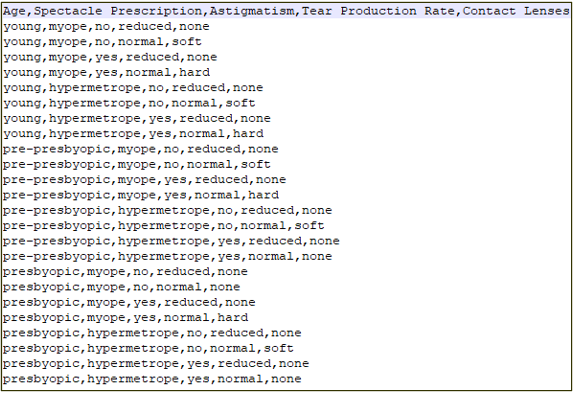
To generate a decision model from these samples, you need to double-click on “learn.bat“. It will generate Excel and JSON files in both folders “Learning” and “Modeling“. Rule Learner will add two files in the folder “Learning” needed for machine learning algorithms.
Here is the first file “Learning/Glossary.xls”:

It include the column “Domain” with automatically calculated possible values for all text variables. The column “used As” marks the last variable as a classification target.
The second file “Learning/Instances.xls” contains all training instances:

Rule Learner will place into the folder “Modeling” all files necessary for execution, analysis, and enhancement of the generated decision model:

The sub-folder “rules” contains 3 files each containing a decision table with the same name “ClassificationRules“.
The file “GeneratedRulesRipper.xls” contains a decision table “ClassificationRules” produced using ML algorithm RIPPER known as Repeated Incremental Pruning to Produce Error Reduction:
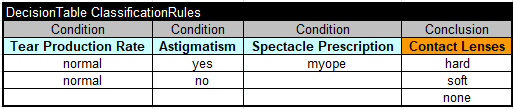
The second tab in this file shows all classification metrics including Average Accuracy=79.27%.
The file “GeneratedRulesC45.xls” contains a decision table “ClassificationRules” produced using ML algorithm C4.5 known as a pruned or unpruned decision tree:
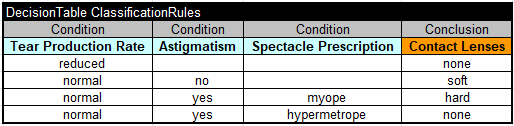
The second tab in this file shows all classification metrics including Average Accuracy=83.62%.
Note. While we tried many other ML algorithms, we’ve found that these two algorithms (RIPPER and C4.5) are the best in generating rules that can be understood and modified by business people. It is not difficult to add more ML algorithms and OpenRules may do it down on the road.
The file “GeneratedRulesTest.xls” contains a trivial decision table “ClassificationRules” produced by converting all samples from “Sample.csv” to multiple Conditions and one Conclusion inside one single-hit decision table:
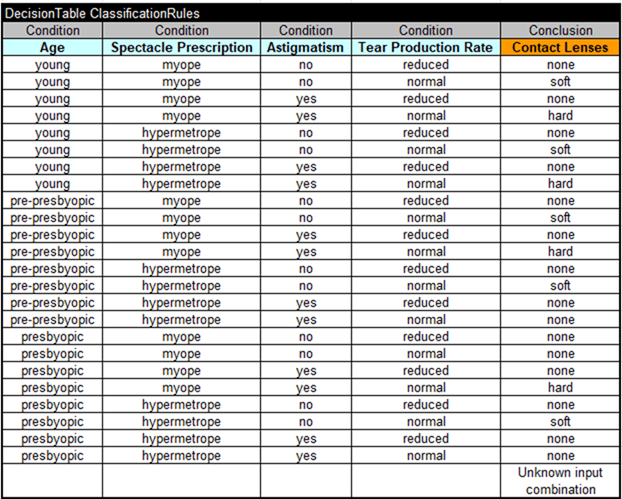
The last rule will catch all uncovers situation and will complain about “Unknown input combination”.
All three variants of the ClassificationRules may be useful for a subject matter expert as an initial prototype for the actual classification rules. From experience, we know that usually RIPPER produces the most compact rules, while C4.5 usually produces much larger more rule sets that could be more precise but more difficult to understand. Still, all generated rule sets are statistical be their nature of ML and they always allow a certain inaccuracy. Thus, any automatically generated rules should be evaluated and in the many cases corrected by subject matter experts.
To make sure that the decision model is executable, Rule Learner adds two more files “rules/Glossary.xls”:
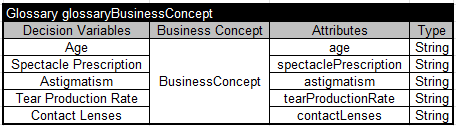
and rules/DecisionModel.xls”:
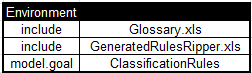
The last table “Environment” includes “GeneratedRulesRipper.xls” as the default generated rules. A subject mater expert may easily change them in this table to “GeneratedRulesC45.xls” or “GeneratedRulesTest.xls”.
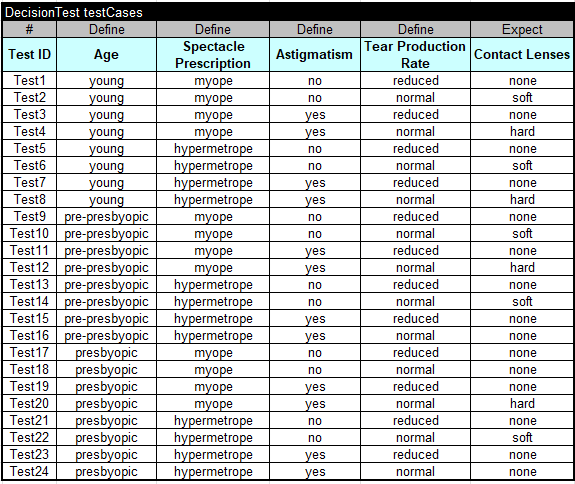
Rule Learner also generates two files “rules/Test.xls” and “rules/TestJson.xls” for testing purposes. Here are the generated test cases in the file “Test.xls”:
Here are the generated test cases in the file “TestJson.xls”:
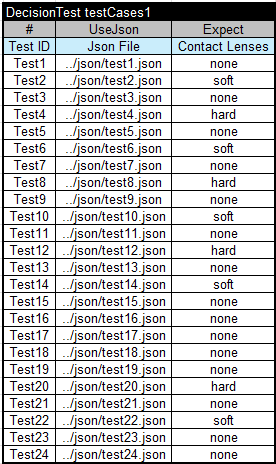
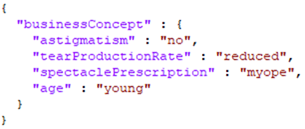
This table refers to test cases generated in separate JSON files located in the folder “Modeling/json”. Here is an examples of the fist test case:
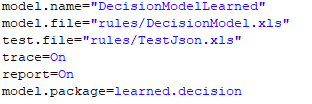
The generated decision model in the folder “Modeling” is ready to be executed by a double-click on “test.bat”. It will execute this decision model against the test cases described (and easily modified) as the property “model.file” in the file “project.properties”:
When we execute this decision model against the default rules generated by RIPPER, we will receive the following results:
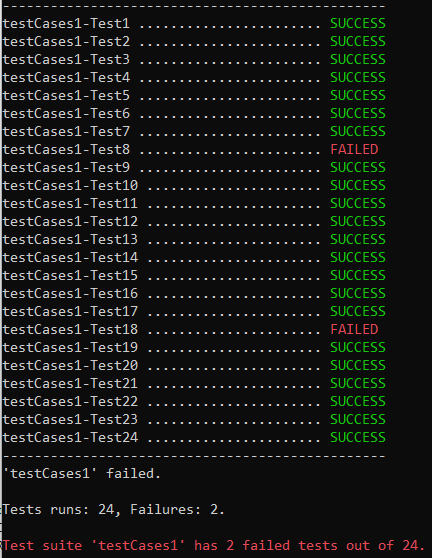
As the Average Accuracy was not 100%, as expected we received errors (in 2 out of 24 test cases). If we switch to “GeneratedRulesTest.xls”, all 24 test cases will be successfully executed. However, if we change the first test case, e.g. replacing Age “young” to “old”, we will receive the error:

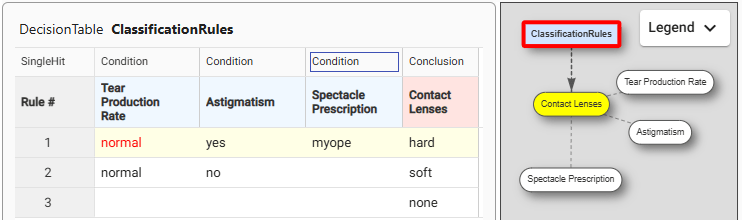
If you run “Modeling/explore.bat” you will open OpenRules IDE and will be able to execute each test in the rule-by-rule mode analyzing what exactly is going on:
A user may copy the generated folder “Modeling” with a working decision model to another location giving it a new name. Then the user may enhance this decision model using the standard OpenRules decision modeling and deployment capabilities.

 Decision Intelligence Platform