


When OpenRules customers keep their rule repositories in local Excel files, they rely on the standard version control systems such as Git and the standard protection mechanism supported by MS Excel and Windows admin groups. Alternatively, some of our large customers prefer to rely on the powerful capabilities of MS Sharepoint as a single platform for storing and sharing documents across the organization. It allows employees from different departments, offices, or regions to access important documents securely. SharePoint’s version control ensures employees are always working with the latest version, while older versions are preserved. Using SharePoint Teams can collaborate on documents in real-time using Microsoft Office integration (Word, Excel, PowerPoint).
These powerful SharePoint’s capabilities make it a natural storing platform for OpenRules-based rule repositories. Starting with Release 10.5.0 OpenRules provides all necessary means to access rule repositories kept and maintained directly on SharePoint.
However, to use OpenRules repositories located on SharePoint you need to configure a special OpenRules application on SharePoint and set up your runtime environment. Below we describe the OpenRules-SharePoint integration process.
1. Application Registration and Permissions
The first step is to register the OpenRules application at the Microsoft Entra admin center by your IT department and grant permission to use Graph API for your SharePoint site. In our demo setup, we registered it under the name “openrules-builder”:
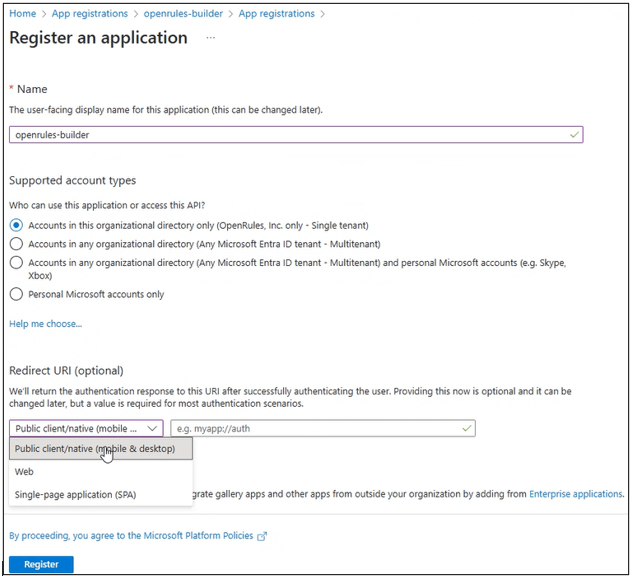
After “Register” you will see this Overview:

The next step is adding API permissions:
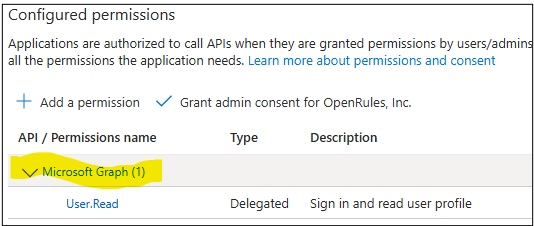
Then we need to select the box “Application permissions” (!):
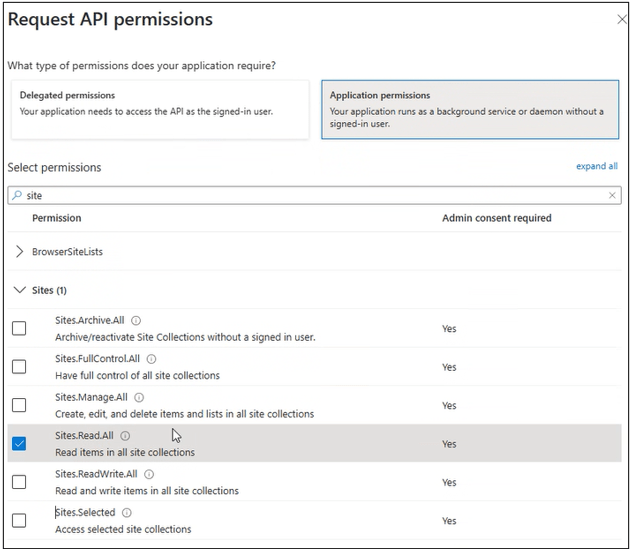
For simplicity, we granted application permission “Sites.Read.All“. Alternatively, you may use a more restricted permission “Sites.Selected” as described in this document or in this blog post:

2. Configuring Client Credentials
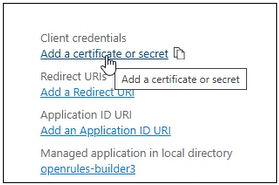
You also need to create the client’s secret in the Client credentials section that the application uses to get access to the Graph API endpoints.
Click on “Add a certificate or secret”:
From this screen
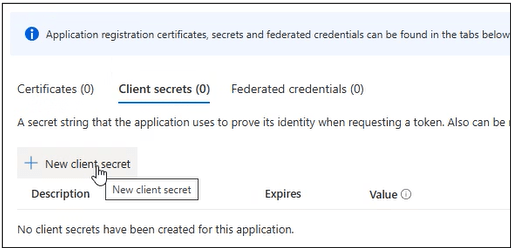
click on “New client secret” and “Add a client secret”:

You will see your secret value:
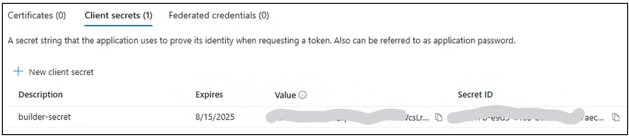
3. Configuring Runtime Environment
To obtain authorization to access Graph API, OpenRules Decision Manager builder needs tenant ID, client ID, and a secret. First, the builder looks for Java system properties sp.tenantId, sp.clientId, and sp.secret. If these properties are not specified then the builder looks for environment variables named SP_TENANT_ID, SP_CLIENT_ID, and SP_SECRET.
If these variables are not specified, then the builder will try to read a property file in the user’s home directory named ~/.sp/credentials. This file must contain three properties: TENANT_ID, CLIENT_ID, and SECRET. Here is an example (with no real values):
TENANT_ID=openrules.com
CLIENT_ID= ex7ampl3-2125-4935-9049-2f74b4adf048
SECRET= 5secretGjiwojhShLW-6HQ-UnkNWWVrby4
The actual tenant ID and client ID can be found in the Overview. To get the actual value of the secret, click on “Client Credentials” on the Overview page.
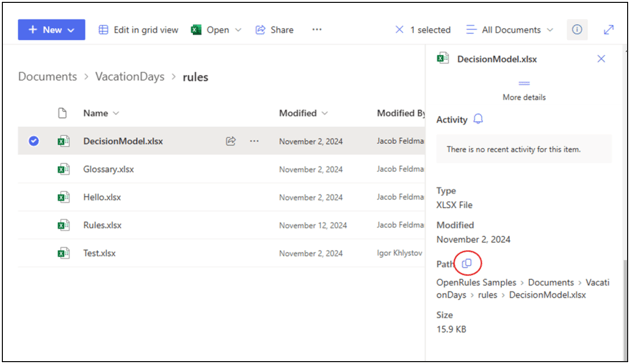
4. Getting a Link to Resources Stored at a SharePoint Document Library
You need to find the document on SharePoint, then click on the radio button left of the document name to make it selected, then look at the details panel on the right, scroll down to the “Properties” section, find the Path label and click on  icon next to the label. The link to the document will be copied to the clipboard.
It may look like on this picture:
5. Preparing your own OpenRules project with SharePoint-based Repository
After you complete the above SharePoint integration, you may migrate your decision project from local files to SharePoint. You only need to make the proper changes in the properties “model.file” and “test.file” (optional) in your local file “project.properties“. For example, we moved Excel files from our standard decision model “VacationDays” to our SharePoint and modified these properties as follows:
- model.file=https://openrules.sharepoint.com/sites/openrules.samples/Shared%20Documents/VacationDays/rules/DecisionModel.xlsx
- test.file=https://openrules.sharepoint.com/sites/openrules.samples/Shared%20Documents/VacationDays/rules/Test.xlsx
You can find a new sample project VacationDaysSharePoint in the standard OpenRules’s installation. It includes the above project.properties. This is just a sample you may use as a prototype for your own test project. To make sure that it runs correctly, you need to use your own values of these properties.
 Decision Intelligence Platform