

Problem
Graphical Interface
Finding Optimal Decisions
Filters
Decision Pool
Integrated Optimization Objective
Navigating over All Decisions
Underlying Decision Model
Let’s consider a highly simplified version of loan borrowing. A bank customer wants to receive a loan between 50K and 65K for the period from 24 to 96 months. The customer provides this information along with his/her monthly income and monthly debt. The bank has a decision model that runs behind the scenes on the bank’s server. Below, we describe how OpenRules Decision Playground can serve as a self-service graphical interface that helps the customer select the most appropriate loan conditions.
Decision Playground as a Graphical Interface
The proper decision model is implemented as a simple project, “Loan,” that comes with OpenRules Rule Solver. You can find its implementation at the end of this page. Now you may use Decision Playground to generate different loan decisions using this decision model.
Start Decision Playground by clicking on “Loan/play.bat“. Here is your playground’s view after you click on “New Request” to select a JSON file with your input data:
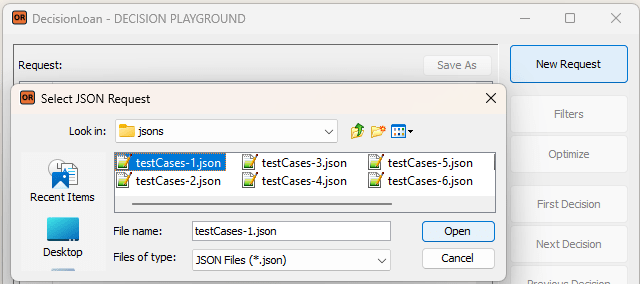
The proper JSON files, such as “testCases-1.json,” were generated based on the test cases in Excel during the testing of the decision model. Still, you may also create a JSON request manually.
Then you may click on “Optimize” to get the following Decision Playground’s view:
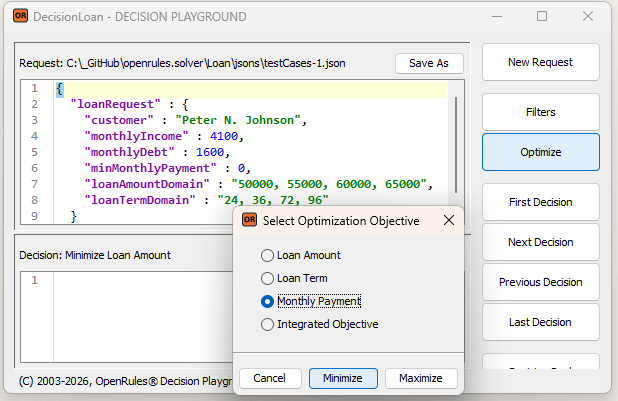
Let’s say you first want to see an available loan with the minimum monthly payment. You can select “Monthly Payment” as your optimization objective and click “Minimize”. You will receive the following decision:
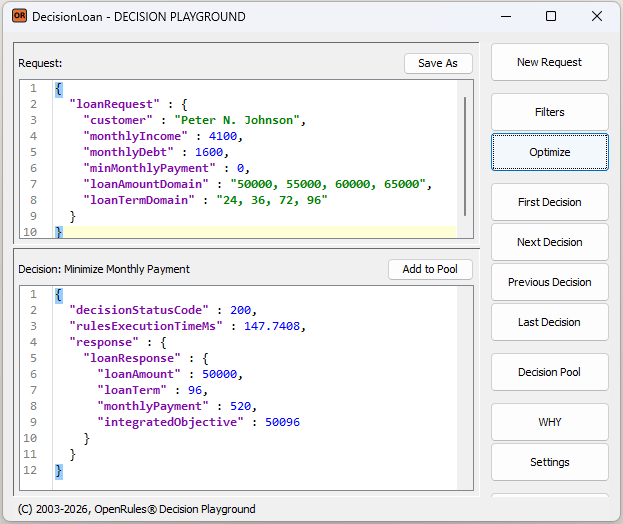
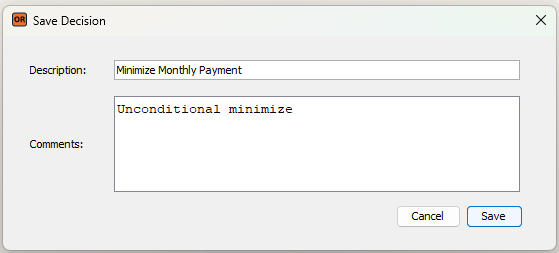
This decision offers you a loan with an amount of $50,000 for 96 months, but with the smallest possible monthly payment of $520. You may memorize this decision in the Decision Pool by clicking on the button “Add to Pool”:
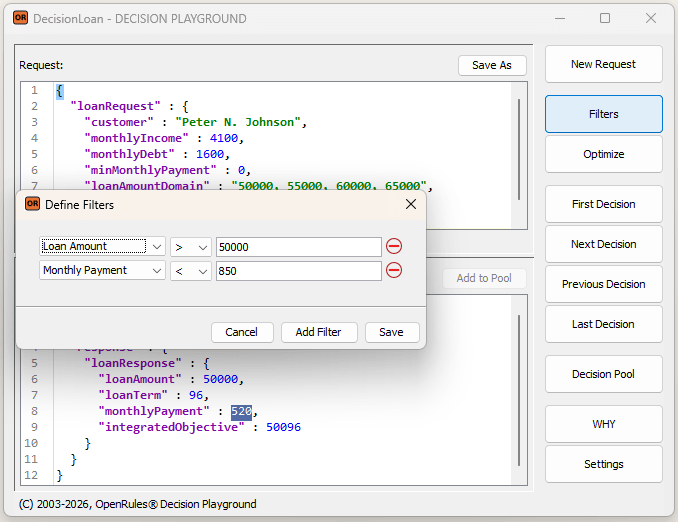
You probably don’t mind paying a bit more than $520 per month, but to receive a larger loan amount. You may express your preferences using the following Filters:
After saving these filters and clicking on “Optimize” with “Minimize Monthly Payment” again, you will receive the following decision:
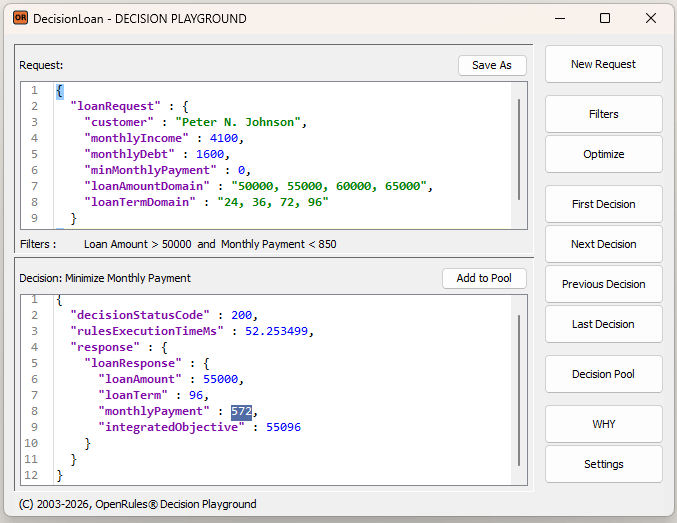
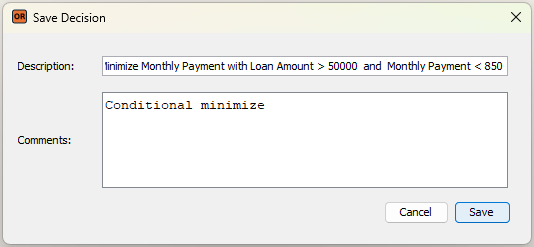
Thus, your monthly payment has been increased from $520 to $572 with the Loan Amount being increased to $55,000. You may add this decision to the Pool as well:
You may wonder what the maximum Loan Amount you may get without any filters. To find out, you may delete all filters in the view “Filters” and use the following “Optimize”:
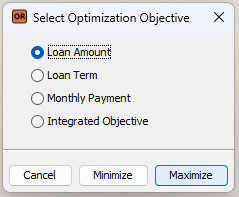
You will receive the following decision:

So, you may get $65,000, but the proposed Monthly Payment of $1,805 is too high. Let’s keep the Loan Amount at $65,000 and try to minimize the Monthly Payment. Here is the produced result:
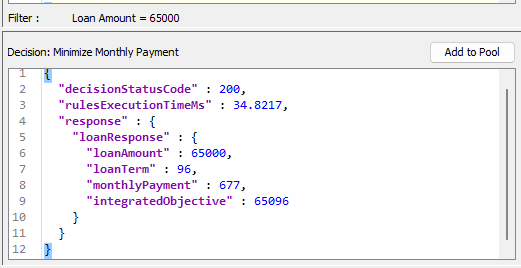
This decision seems much improved, though a 96‑month loan term is likely excessive. Let’s add this decision to Decision Pool as well.
Integrated Optimization Objective
This decision model defines one more optimization goal called “Integrated Objective”, which is a sum of the Loan Amount and the Loan Term. We may try to maximize this objective that should keep the Loan Amount high while the Monthly Payment low:
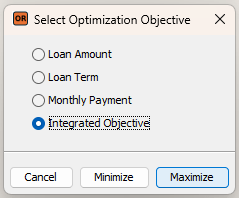
Here is the proper decision without filters:

We may add a filter that keeps the Loan Term below 96. It will give us the following decision:
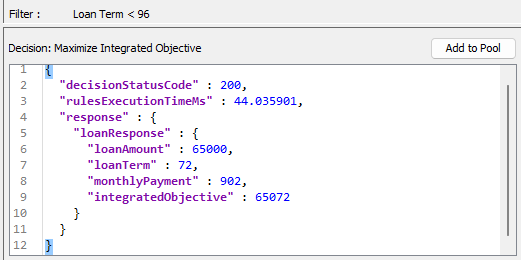
You may decide that this is the most appropriate (not necessarily optimal) decision you may accept.
Click on the button “Decision Pool” to compare all 4 added decisions we received so far:

You can continue experimenting with different filters and optimization objectives to obtain the decisions that best suit your situation.
When the problem does not have too many decisions, we may simply navigate over all of them using buttons “First Decision”, “Next Decision”, Previous Decision”, and “Last Decision” without any optimization. Let’s delete all filters and click on “First Decision and “Next Decision”. Here are the first 4 decisions:
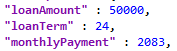 | 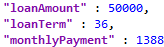 |  |  |
The Loan Amount for all these decisions seems to be too small. You may keep clicking on “Next Decision” to get more decisions one by one. You may also click on “Last Decision”. It will produce the decision #14:
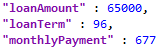
A click on “Previous Decision” will produce the decision #13:

This is the decision we’ve already found above, and which is the most appropriate one. Of course, you may define filters to limit your manual navigation over decisions.
This example is based on a very simple decision model – see file “openrules.solver/Loan/rules/DecisionModelLoan.xls”. Here is the Glossary:

Here are two main methods, “Define” and “Solve”, that are pretty common for decision models utilizing Rule Solver:
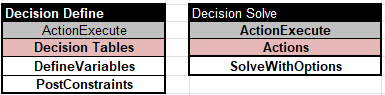
The table “Define” invokes two decision tables:

The table “Solve” relies on the standard solving method “SolveWithOptions”.
If you make changes in the decision model, you need to restart Decision Playground to see how they affect the generated decisions.
 Decision Intelligence Platform