

OpenRules business decision models can be deployed as operational decision services utilizing the Serverless architecture provided by AWS, the most powerful cloud platform in the world. Deploying your decision models as AWS Lambda functions you don’t even think about servers and pay only for the execution time your services actually consume.
However, the cold reality is that AWS is complicated, and the way how you build and deploy your AWS Lambda Decision Service is usually not straightforward. It may require a deep understanding of the AWS environment and essential coding and configuration efforts. OpenRules Decision Manager dramatically simplifies this process by automatically generating all necessary components and allowing you to convert your business decision model to AWS Lambda function without any coding. They can do it even directly from their local installation with one click on the provided batch file “deployLambda.bat“!
Note. If you are using Mac OS or Linux, instead of “deployLambda.bat” use the script file “deployLambda“.
Sample Project. The standard sample project “VacationDaysLambda” demonstrates how to deploy your business decision model as an AWS Lambda function. It deploys the already created and tested decision model in the sample project “VacationDays”. It uses the same rules repository “VacationDays/rules” and the adjusted file “project.properties”. It includes two new files “deployLambda.bat” and “undeployLambda.bat”. When you double-click on “deployLambda.bat” it will automatically create the AWS Lambda function “VacationDays”.

What is actually required for AWS Lambda deployment? First of all, you need to have an active AWS account and setup your security AWS Credentials (access key ID and secret access key) in the default file ~/.aws/credentials. Then you should define your AWS deployment properties in the provided file “project.properties“. Here is an example of the required settings:
| deployment=aws-lambda | Define your deployment option as AWS Lambda function |
| aws.lambda.bucket=openrules-demo-lambda-bucket | Defines any new or existing S3 bucket name, e.g. “your-company-lambda-bucket”. |
| aws.lambda.region=us-east-1 | Defines a selected AWS region |
| aws.lambda.runtime=java11 | Defines Java Runtime with possible value java11 (default), java17, or java21 |
| aws.lambda.memorySize=512 | Defines an amount of memory in MB available to your Lambda function. The default is 512 |
| aws.lambda.timeout=30 | Define the maximum amount of time in seconds that your Lambda function can run. The default value is 30 seconds, but you can adjust this up to a maximum value of 15 minutes. Keep in mind, that if your AWS Lambda is invoked using API Gateway (OpenRules default option), then API Gateway limit the total execution time to 30 seconds. |
When you simply click on the standard file “deployLambda.bat“, the decision model will be deployed and the console log will show the invoke URL for the deployed decision service (highlighted in the following example):
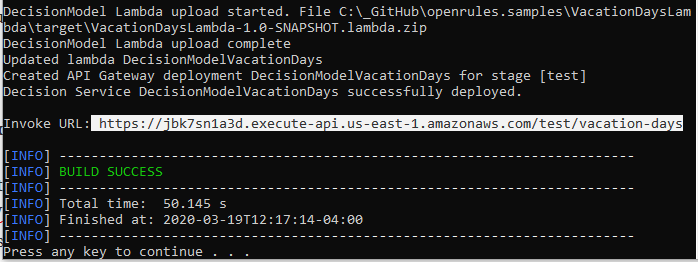
OpenRules automatically produced the endpoint URL ending with “vacation-days” based on the property “model.name=VacationDays” defined in the Environment table. You may replace this name by overriding this property in the file “project.properties”, e.g. “model.endpoint=calculate-vacation-days“.
Testing Your Lambda Decision Service. To test your deployed decision service, during “deployLambda.bat” OpenRules generated the file “testLambda.bat” that already includes the above invoke URL. When you click on this file, it remotely executes all test cases defined in the Excel file “Test.xls” against just deployed AWS Lambda. When you run “testLambda.bat” for the first time, it will show the testing results as follows:
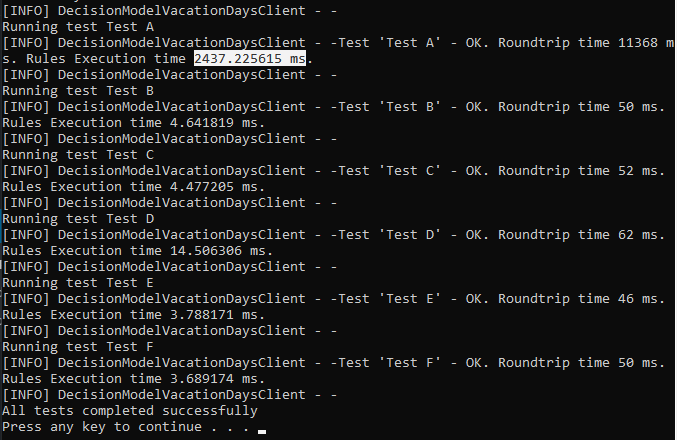
AWS Lambda “Cold Start”
Please note that the start time for this Lambda function took almost 2.5 seconds (2437 milliseconds) while all tests were executed very quickly within only 4 milliseconds. The “slow” start was caused by the so-called Lambda’s “Cold Start” when a new instance handles its first request. Cold starts happen 10 minutes after the previous request.
If you repeat “testLambda.bat”, you will receive the following results:
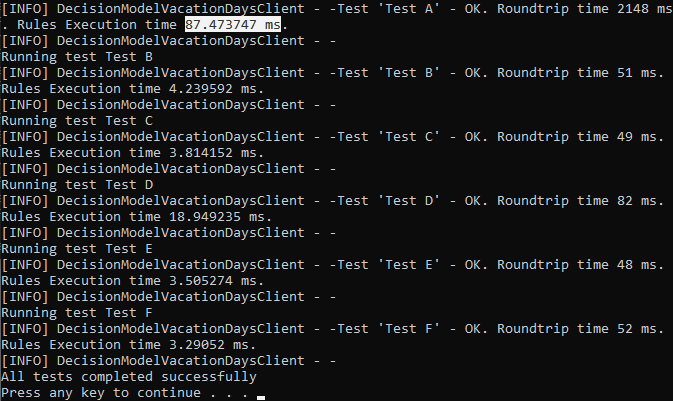
AWS Lambda “Hot Start”
Note that the start time went down from 2,437 to only 87 milliseconds – this effect is known as Lambda’s “Hot Start” and should be taken into consideration when you select your deployment options.
Note. If you are using Mac OS or Linux, instead of “testLambda.bat” use the script file “testLambda“.
Testing with POSTMAN. You may test this decision service with the popular graphical tool POSTMAN by proving the Lambda’s URL and entering test data like in this view:
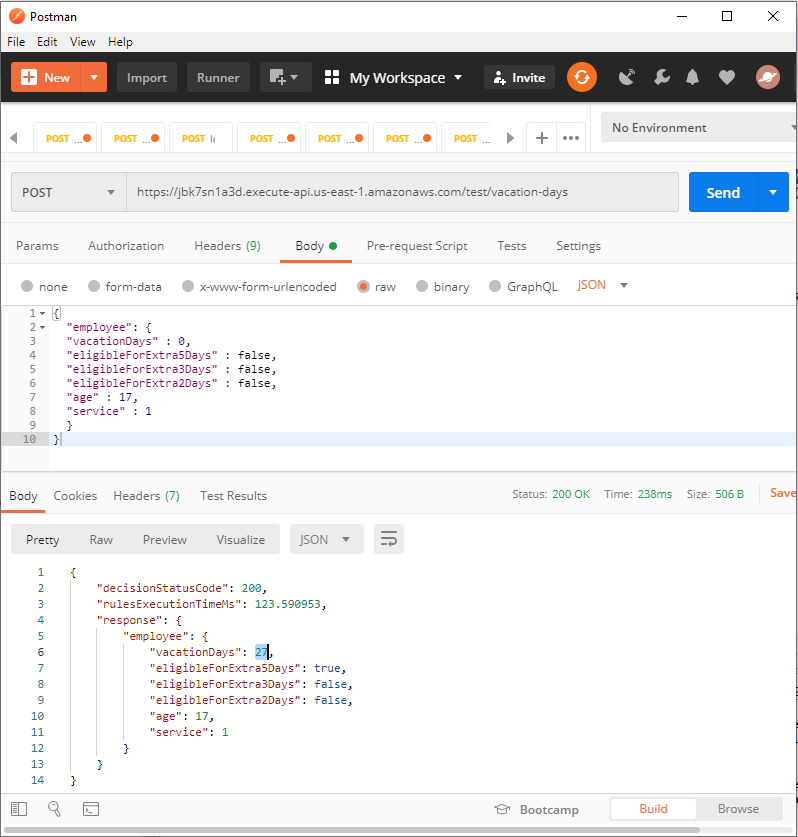
You can test this Lambda function against any JSON test automatically generated by OpenRules in the folder “jsons“.
Invoking AWS Lambda from Java. The example “VacationDaysLambda” includes the Java class “SampleGeneratedClient” (in the folder “src/test/java”) that demonstrates how to invoke the deployed AWS Lambda. Here is the code:
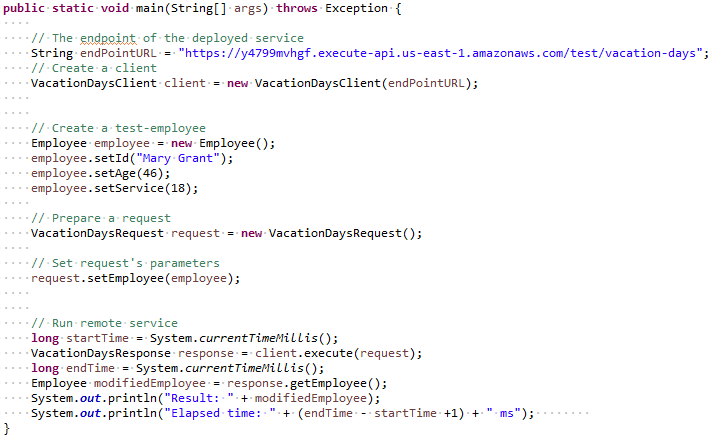
Here are the execution results:
Result: Employee(id=Mary Grant,vacationDays=24,eligibleForExtra5Days=false,eligibleForExtra3Days=false, eligibleForExtra2Days=true,age=46,service=18)
Elapsed time: 825 ms
Additional AWS Properties
Optionally, you may use additional settings to specify more details about your AWS deployment preferences. For example, by default, we use the word “test” (inside the invoke URL) as your deployment stage. But you may redefine it as “dev”, “prod”, or any similar word using this setting:
aws.api.stage=test
By default, your deployed service will be publicly accessible, but it is possible to make it private.
Usually, people keep their AWS Credentials (access key ID and secret access key) in the default file ~/.aws/credentials. However, alternatively, you may define them directly in the file “project.properties”:
aws.access.key.id=<aws-access-key-id>
aws.secret.access.key=<aws-secret-access-key>
If you decide to undeploy your decision service and clean up your AWS, just click on the file “undeployLambda.bat“.
Deploying Your Decision Model as AWS Lambda. You can use the sample project “VacationDaysLambda” as an example of how to deploy your own model as an AWS Lambda function. Copy files “project.properties”, “deployLambda.bat”, and “undeployLambda.bat” to your own project. You also need to add the AWS dependency to your “pom.xml” file similarly to how it’s done in the “VacationDaysLambda/pom.xml:
<dependency>
<groupId>com.openrules</groupId>
<artifactId>openrules-aws</artifactId>
<version>${openrules.version}</version>
</dependency>
After adjusting “project.properties” you may simply double-click on “deployLambda.bat”, and then use the generated “testLambda.bat” to test your own service.
NOTE 1. If you receive error messages that you don’t have enough authorizations to deploy and run your AWS Lambda function, make sure that you don’t have restrictions by adding the proper roles using the standard AWS Lambda graphical interface.
NOTE 2. If you decide to undeploy your decision service and clean up your AWS, just click on the file “undeployLambda.bat“.
Building AWS Lambda for AWS Pipelines. Instead of relying on the “one-click” deployment with “deployLambda.bat” you may prefer to use the existing CI/CD pipeline configured by their IT department. In this case, you can package the Lambda’s code as a zip file by clicking on “buildLambda.bat” which can be uploaded to their AWS environment.
 Decision Intelligence Platform